EasyCast - cast phone to tv, Roku, Fire TV, Xbox
TV Master - Smart TV Remote Control
v1.0.4
Dec 3, 2020
EasyCast - cast phone to tv, Roku, Fire TV, Xbox Description
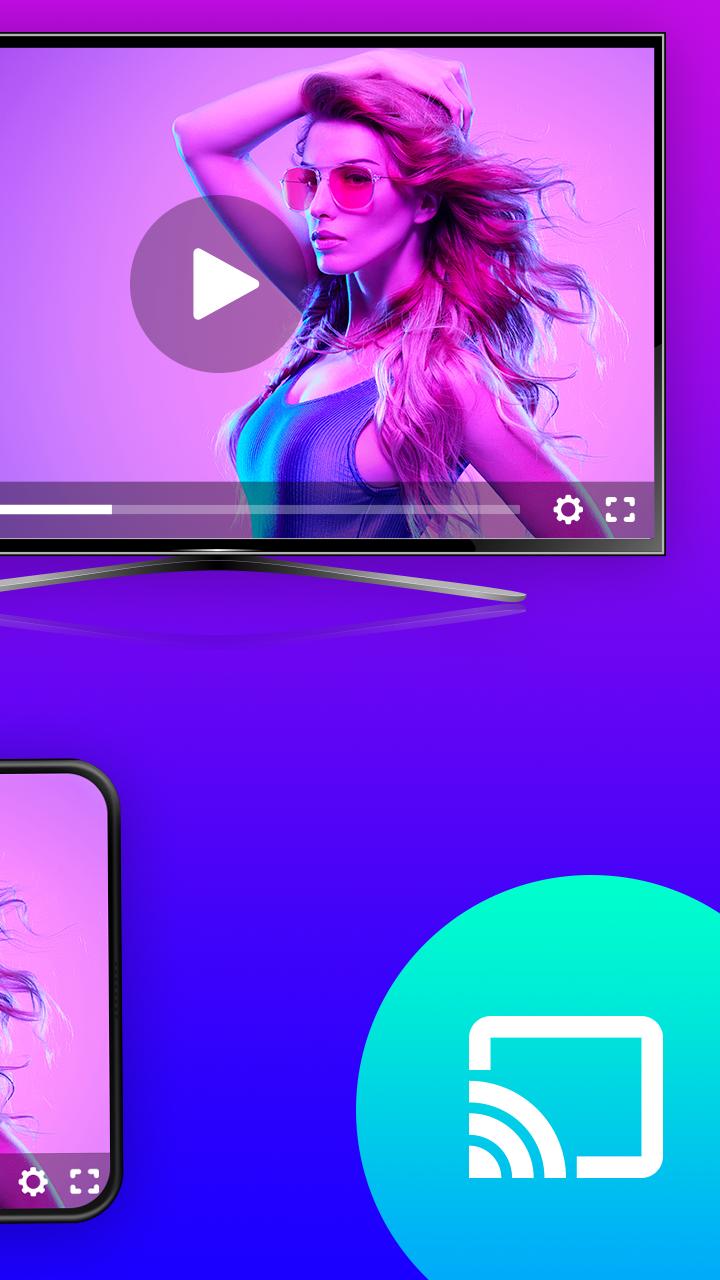
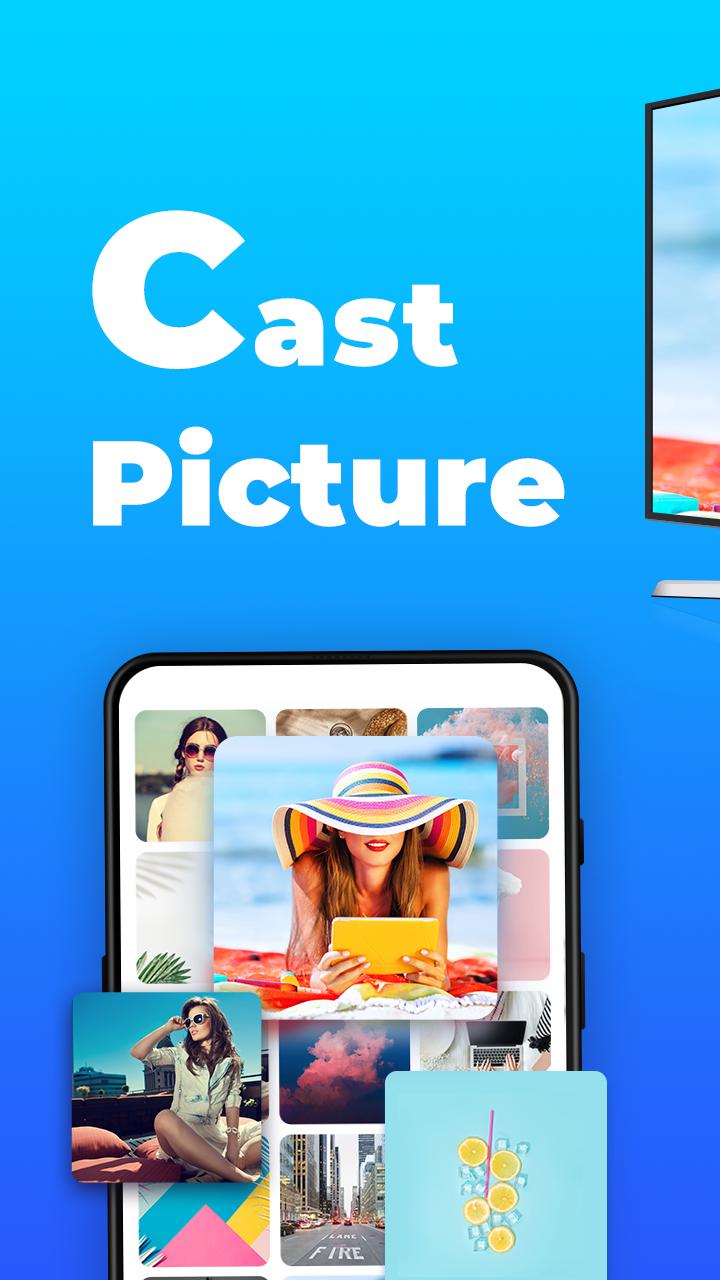
Want to enjoy your phone's video/picture/music on your big screen TV? Share them on a large screen to make them look more amazing?
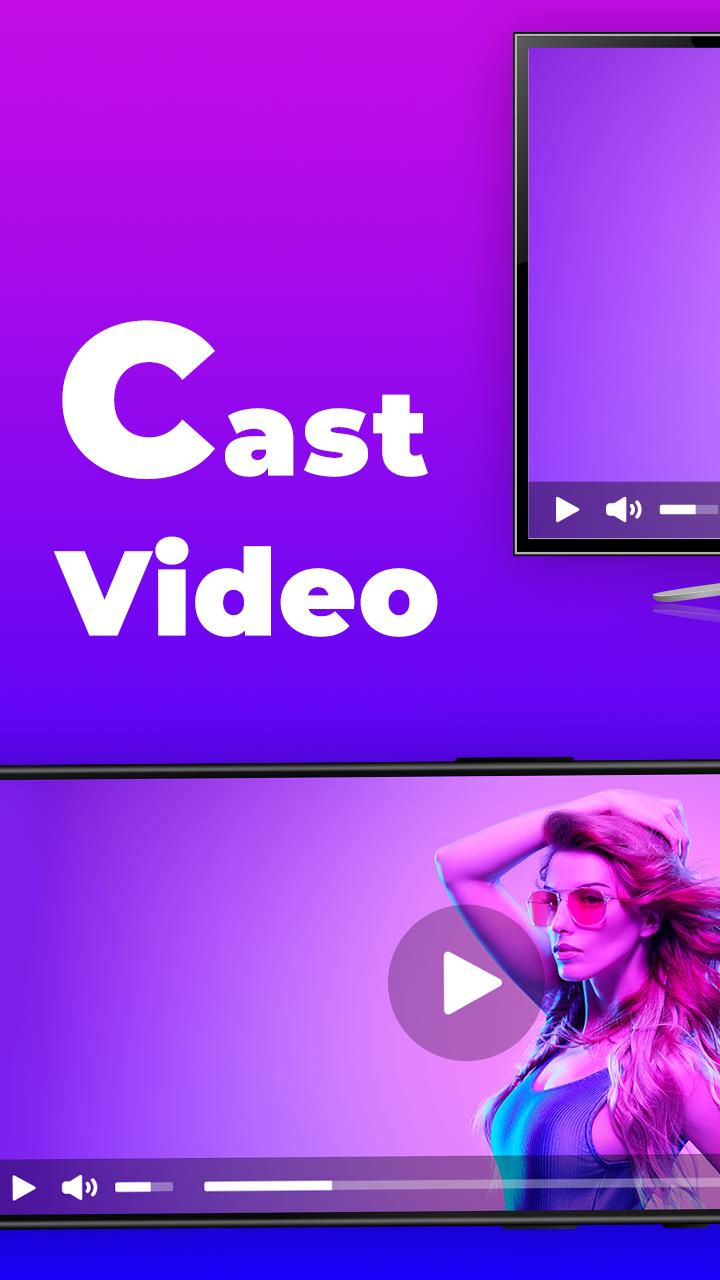
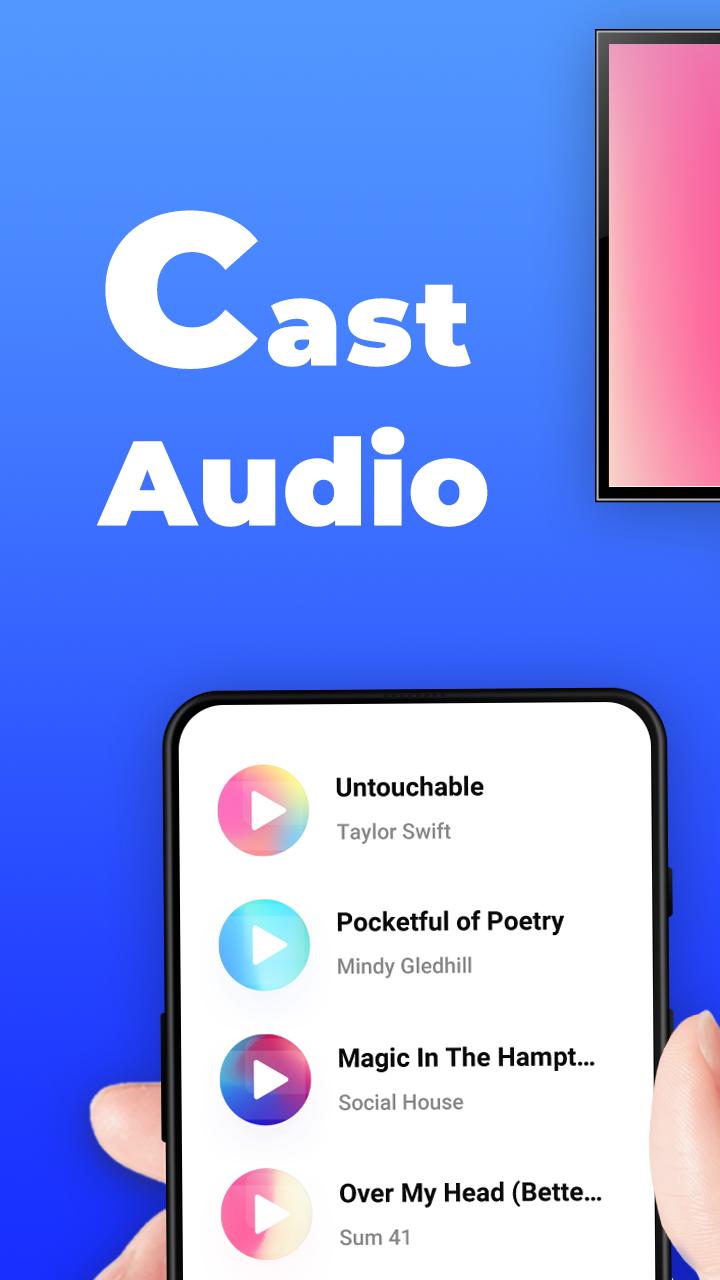
EasyCast has all functions that fulfills your wishes. Wirelessly cast music, voice, videos and photos to your TV!
Feature:
• Automatically search nearby TVs
• Scans local & SD cards files: music, audio, video, photo, PPT/slides
• Low latency
• No wires or adapters required
• Multiple video playback modes: random playback, list loop, repeat playback
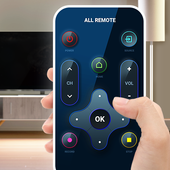
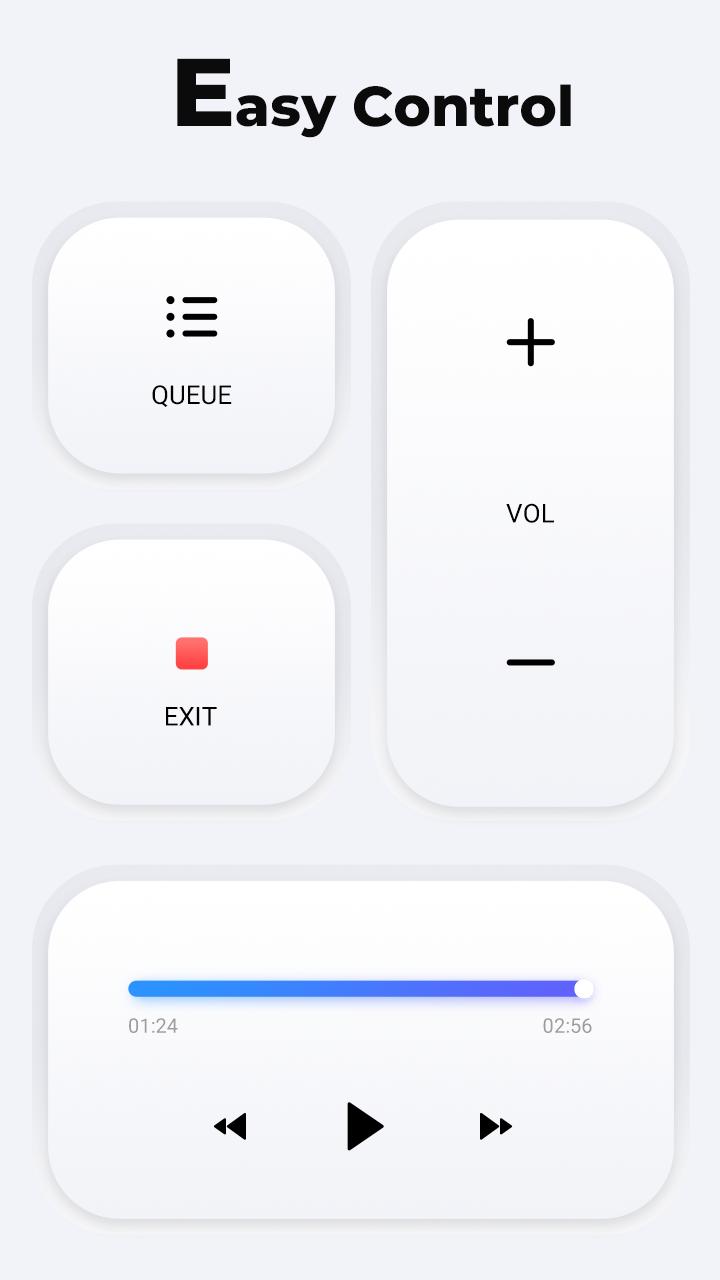
• Remote control function: previous/next, previous/back, volume up/down, and pause
How to connect my phone to TV?
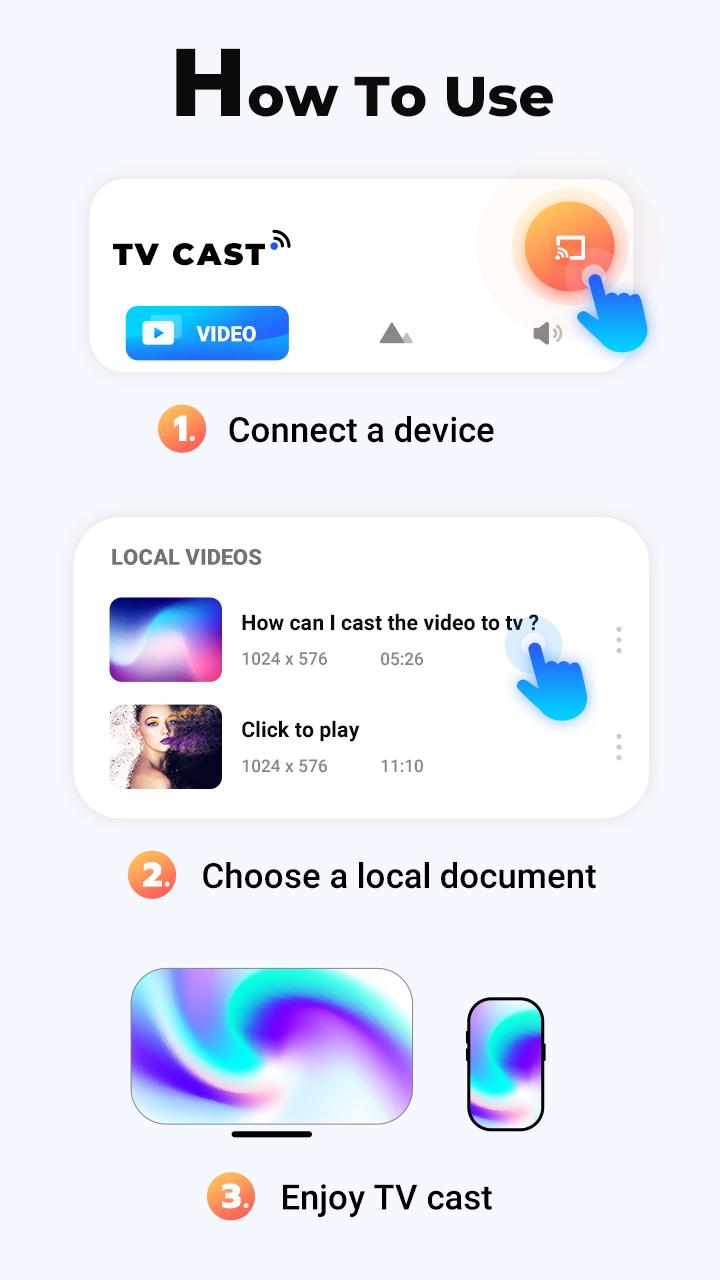
1. Turn off VPN and make sure your phone and TV are connected to the same Wi-Fi network
2. Launch the app
3. The app will search for available devices nearby and then you can select the device to push
4. Select local file
5. Successfully cast ☺
Built-in DLNA device/player/TV/smart TV supported:
-Microsoft Xbox One
-Amazon Fire TV & Fire Stick
-Smart TV: Lg, Samsung, Hisense, Sony, Panasonic, Sharp, Toshiba, Philips, Insignia, Vizio, Videocon Dth, Philco, Aoc, Jvc, Haier, Westinghouse, Daewoo, Sansui, Sanyo, Akai, Polaroid, Mi TV, etc. , Huawei TV etc.
-Other DLNA TV equipment
Disclaimer:
*Make sure your tv is DLNA certified before using
*This app is not an official TV brand product and is not affiliated with any of the above brands.
*Please know the differences of the screen mirroring and casting. Casting does not display exactly what's on your screen the way screen mirroring does. You can close the app and do other phone actions without interrupting the casting.
EasyCast has all functions that fulfills your wishes. Wirelessly cast music, voice, videos and photos to your TV!
Feature:
• Automatically search nearby TVs
• Scans local & SD cards files: music, audio, video, photo, PPT/slides
• Low latency
• No wires or adapters required
• Multiple video playback modes: random playback, list loop, repeat playback
• Remote control function: previous/next, previous/back, volume up/down, and pause
How to connect my phone to TV?
1. Turn off VPN and make sure your phone and TV are connected to the same Wi-Fi network
2. Launch the app
3. The app will search for available devices nearby and then you can select the device to push
4. Select local file
5. Successfully cast ☺
Built-in DLNA device/player/TV/smart TV supported:
-Microsoft Xbox One
-Amazon Fire TV & Fire Stick
-Smart TV: Lg, Samsung, Hisense, Sony, Panasonic, Sharp, Toshiba, Philips, Insignia, Vizio, Videocon Dth, Philco, Aoc, Jvc, Haier, Westinghouse, Daewoo, Sansui, Sanyo, Akai, Polaroid, Mi TV, etc. , Huawei TV etc.
-Other DLNA TV equipment
Disclaimer:
*Make sure your tv is DLNA certified before using
*This app is not an official TV brand product and is not affiliated with any of the above brands.
*Please know the differences of the screen mirroring and casting. Casting does not display exactly what's on your screen the way screen mirroring does. You can close the app and do other phone actions without interrupting the casting.
Additional Information
Category
App › House & Home
Version
1.0.4
Updated
Dec 3, 2020
Requires Android
Android: 4.4+ KitKat (API 19)
Permissions
Architectures
Supports 32-bit and 64-bit ARM Android CPU architectures.
arm64-v8a
64-bit
Most modern phones & tablets
Your device
armeabi-v7a
32-bit
Older Android devices
Your device
Target Android
Android: 10 Android 10 (API 29)
Estimated Download Time
File Size: 9.64 MB
3G network (~2 Mbps)
47 seconds
4G LTE (~25 Mbps)
4 seconds
5G network (~150 Mbps)
1 seconds
Broadband / Wi-Fi (~100 Mbps)
1 seconds
Hashes
SHA-1
A0C851C2195A7BD38677FF32E92FDE1A8543CB9FSHA-256
BF0550F30502B2D8FED5FD794281E42F612FAE29FAFBE85D3D50B27A2AE0BD2BSigning Certificate SHA-1
E5D4D61BCD8F9E541B8AC5D9B8CB7C4BD7F1ECFDAvailable On